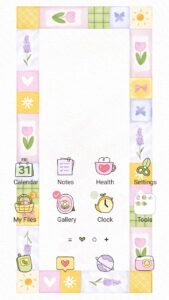
Unlock Your Galaxy’s Charm: Why Muntheme Delivers the Best Samsung Themes
Discover why Muntheme stands out as the premier choice for personalizing your Samsung Galaxy. We offer unmatched quality, delightful variety, and dedicated support to make


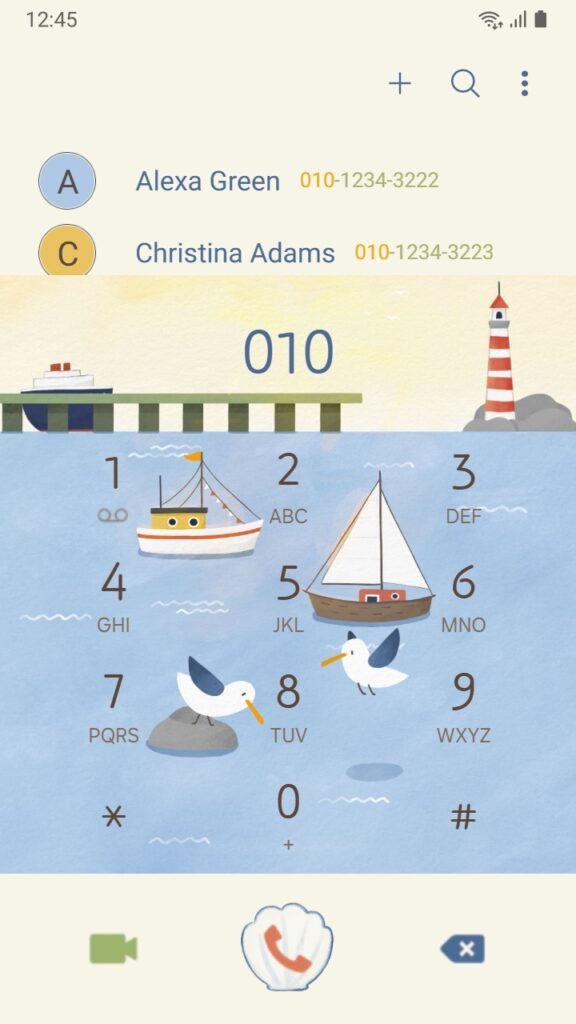
Congratulations on your new Samsung Galaxy! Unboxing a shiny new device is always exciting, isn’t it? It’s like a fresh canvas, ready for your personal touch. While you’re dreaming of beautiful themes and custom icons (like those from Muntheme!), let’s cover some super important first steps to ensure your device is secure, efficient, and ready for all your adventures.
Think of this as your friendly, pastel-hued checklist for a perfect start!
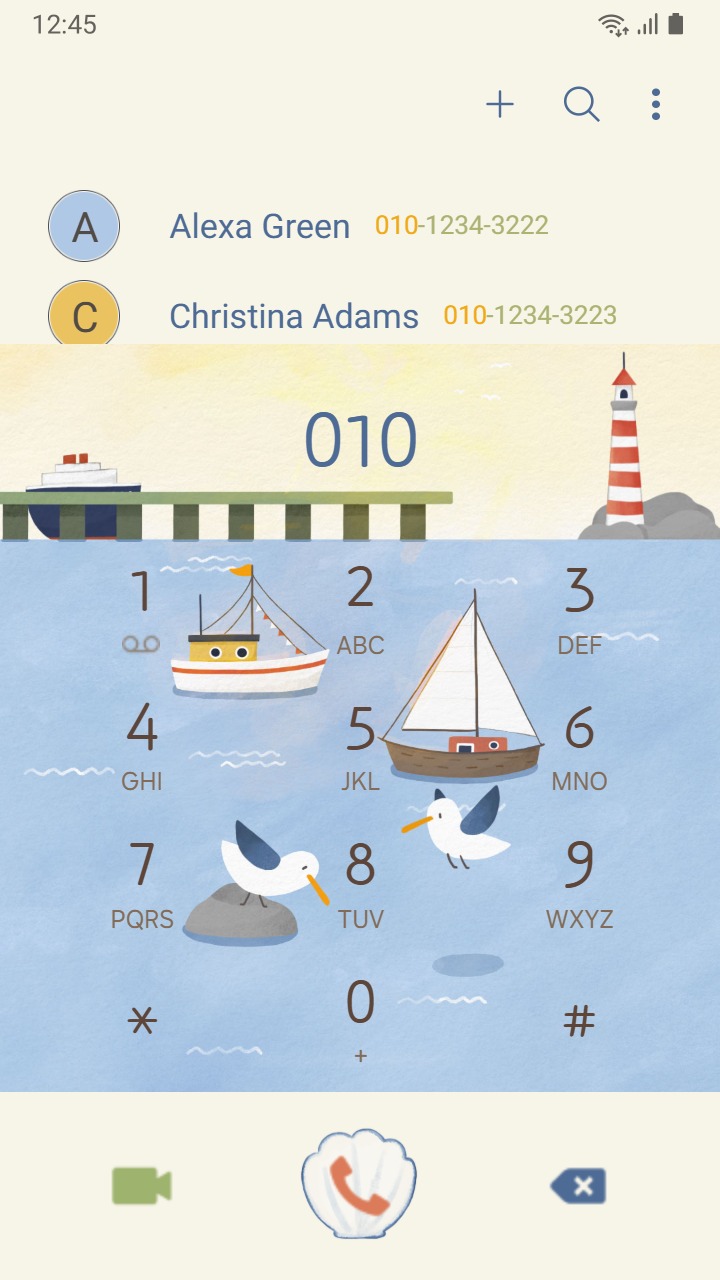
Your phone holds so many memories and important details, so keeping it safe is priority number one! Let’s make sure your digital space is as cozy and secure as possible.
Imagine all your adorable photos and important chats vanishing! Gasp! Let’s prevent that by making sure your precious data is safely backed up.
Keep your phone purring happily all day long with these sweet battery tips!
A happy phone is a clean phone! Let’s keep things running smoothly, just like a freshly designed theme.
With these essential steps, your new Samsung Galaxy is not just secure and efficient, but also perfectly prepped for you to unleash your creativity! Now that the essentials are covered, why not explore our world of premium Samsung Themes and KakaoTalk Themes? Find the perfect pastel, kawaii, or vintage style to truly make your phone uniquely *you*!
Happy customizing!
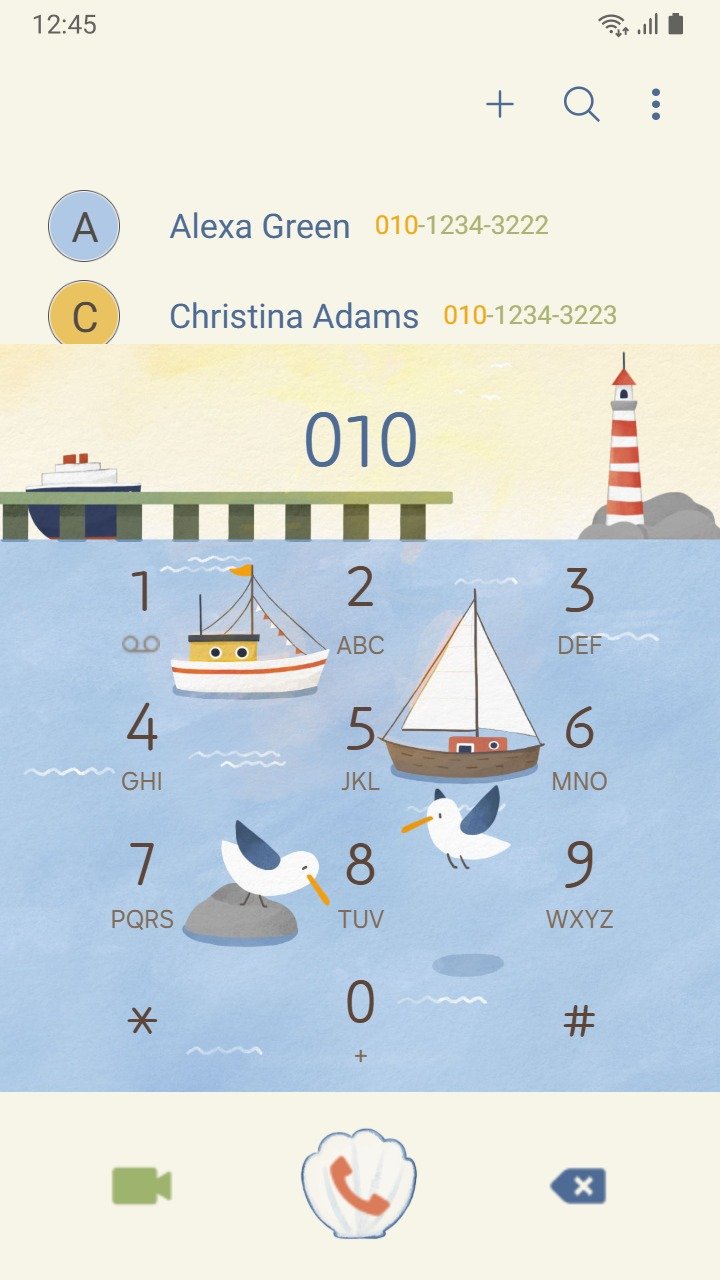
Discover why Muntheme stands out as the premier choice for personalizing your Samsung Galaxy. We offer unmatched quality, delightful variety, and dedicated support to make
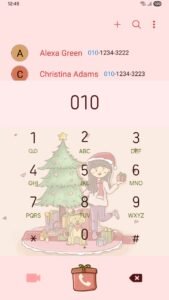
Discover Muntheme’s signature kawaii, pastel, and warm artistic style that brings unique personalization to your Samsung Galaxy and KakaoTalk devices. Explore our design philosophy and
Just got a new Samsung Galaxy? Dive into our friendly, pastel-infused checklist to secure your device, back up precious memories, optimize battery life, and keep
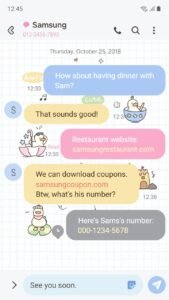
Discover Muntheme’s enchanting new and highlighted themes on the Samsung Galaxy Store, featuring kawaii ducks, delicate florals, and sweet popsicles to transform your device with

Discover the hottest Google trends in phone personalization, from aesthetic cohesion to dynamic themes and the ever-popular kawaii style. See how Muntheme’s premium Samsung and
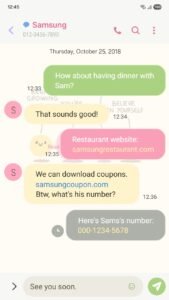
Dive into Muntheme’s enchanting world of Samsung Galaxy themes! Discover our latest kawaii, pastel, and warm artistic designs, including animated and video themes, to make