
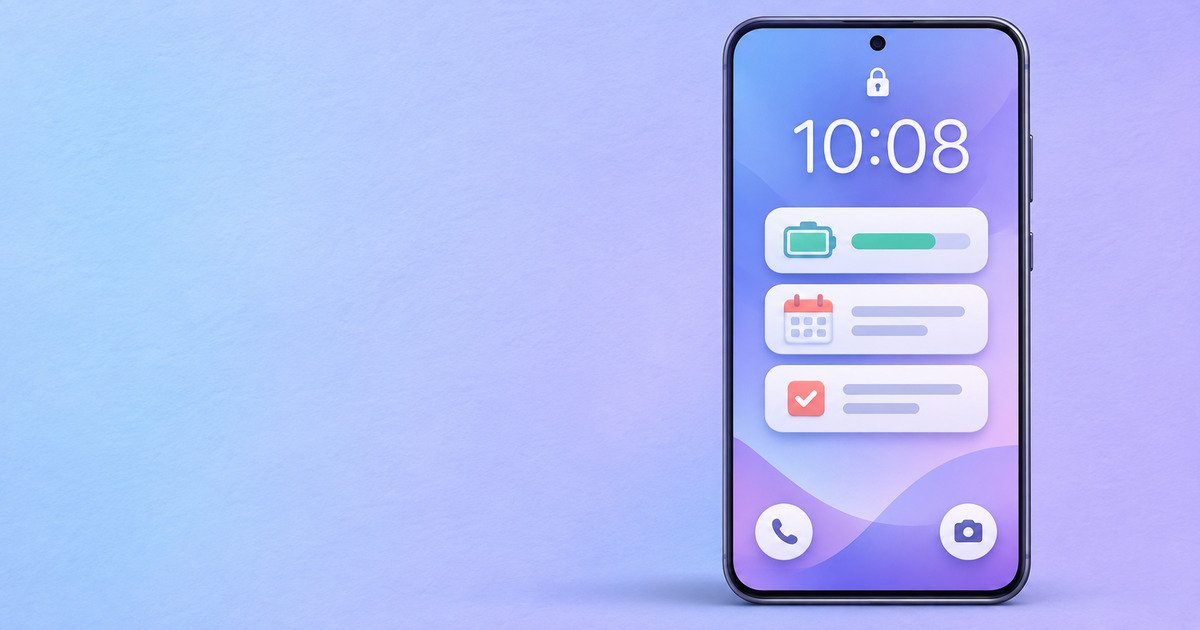
Your lock screen can do more than show the time. On a recent Samsung Galaxy phone, you can place two shortcuts near the bottom of the screen and add small widgets for information you want to check quickly.
The exact choices depend on your phone model, region, installed software, and One UI version. The steps below follow Samsung’s current guidance and also explain what to check when your screen looks different.
Start from the lock screen editor
Wake your phone, then touch and hold an empty area of the lock screen. Unlock the phone when prompted. This opens the lock screen editor without taking you away from the design you are changing.
If the editor does not appear, open Settings, choose Wallpaper and style, and select the lock screen preview. Some older Galaxy models may place related controls under Lock screen or Lock screen and AOD instead.
Before changing the layout, check that you have a secure lock screen set up. Samsung notes that shortcut controls may not appear until a lock screen is configured.
Choose the left and right shortcuts
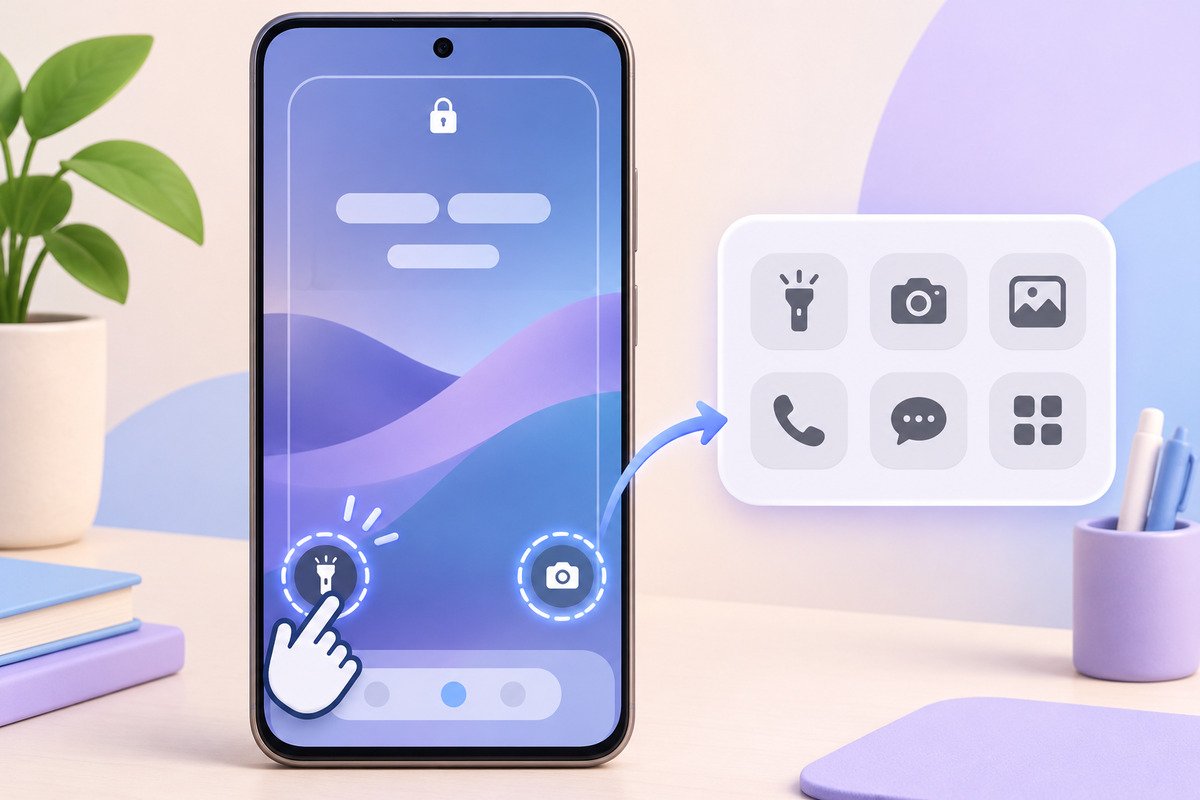
Tap the shortcut circle at the lower left or lower right. Choose the function you want, or select No app if you prefer a cleaner screen. Repeat the process for the other side, then tap Done.
Camera and Phone are common defaults, but your available list can include other installed options. Pay attention to the Unlock required section. A shortcut from that group can still appear on the lock screen, but the phone will ask you to unlock before it opens.
To use a shortcut, wake the phone and swipe the shortcut in any direction. A short vibration tells you when the gesture has moved far enough.
Keep the pair simple. One shortcut for something you use quickly and one for a function you use often is usually easier to remember than choosing two similar options.
Add and arrange lock screen widgets
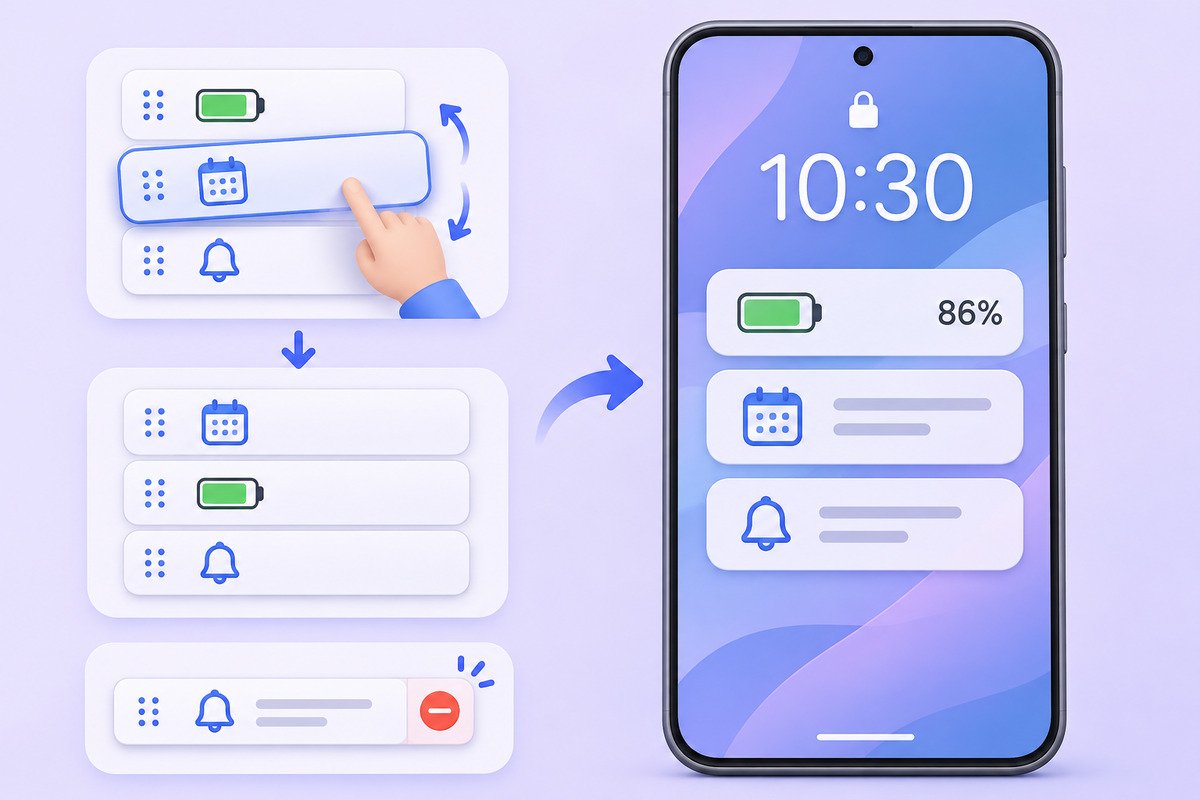
Return to the lock screen editor and tap Widgets or + Widgets. Swipe through the available groups, choose a widget, and select the layout you prefer. Battery, Clock, Calendar, and Reminder are common examples, but the list varies by phone and software.
You can add more than one widget. To change their order, touch and hold a widget and drag it to a new position. To remove one, tap the red minus control. Tap Done when the group is arranged the way you want.
On supported models, lock screen widgets may also appear on the Always On Display. Open Settings > Lock screen and AOD > Always On Display to review when that screen is shown. Availability and behavior vary across One UI versions.
Make the layout useful at a glance
A good lock screen should be readable before it is decorative. Start with one or two widgets that answer a real question, such as your remaining battery or next calendar item. Add more only when the screen still feels easy to scan.
Choose a wallpaper with enough contrast behind the clock and cards. If text becomes difficult to read, use a calmer crop or adjust the clock style and color. Our guide to choosing a Samsung theme that stays easy to read explains the same principle across the rest of the interface.
You can also schedule dark mode on your Samsung Galaxy so the interface is more comfortable at night.
What to check when an option is missing
If you cannot find a shortcut or widget:
- Check for a phone software update.
- Confirm that the related app is installed and up to date.
- Open the app once to make sure it works normally.
- Restart the phone, then return to the lock screen editor.
- Remember that work profiles, regional differences, carrier software, and older One UI versions can limit what appears.
If a widget stops updating, remove it and add it again. Samsung also recommends checking the related app and installing current app updates before troubleshooting further.
For another useful lock screen related setting, see how to give selected apps different notification sounds.
A simple setup to try
For a practical starting point, keep Camera on one side, choose a second shortcut you use every day, and add Battery plus Calendar widgets. Use that layout for a few days before adding anything else. The goal is not to fill every space. It is to make the information you need easier to reach.