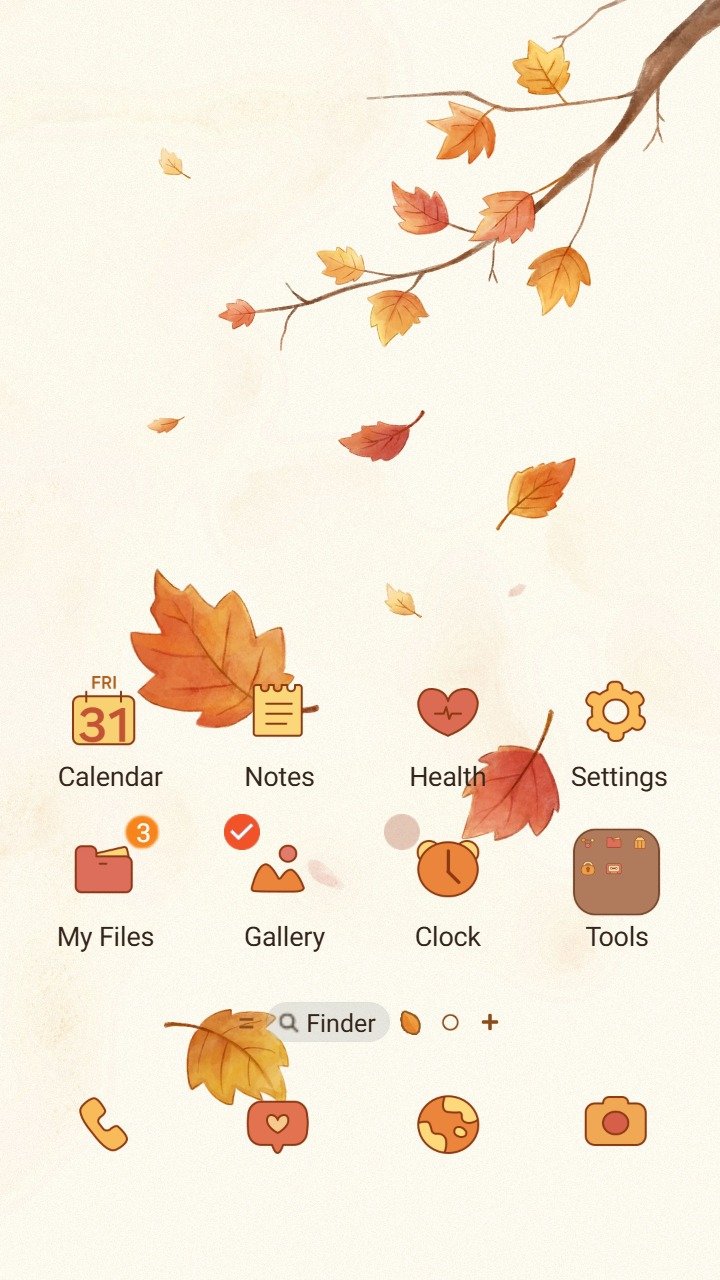

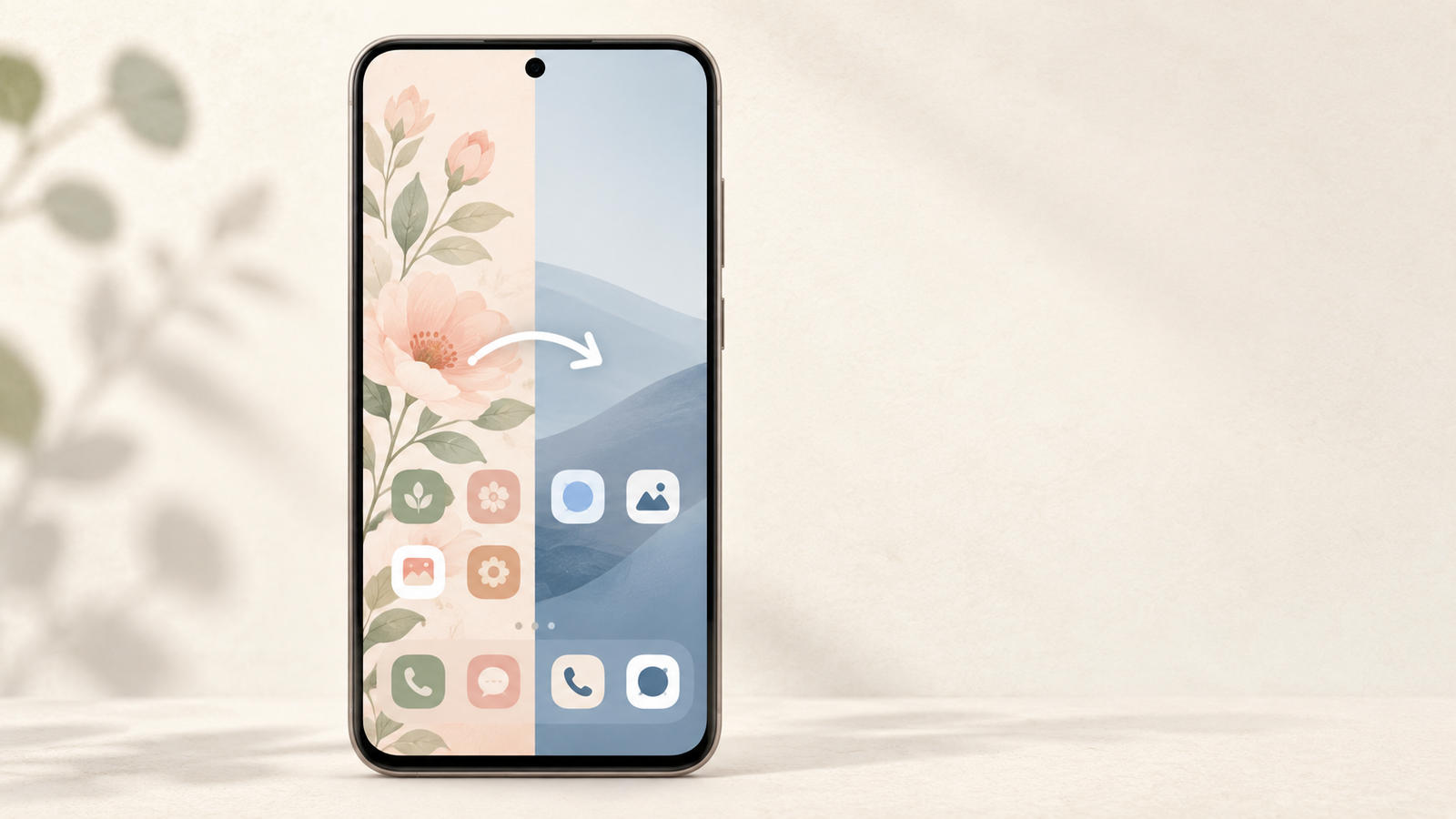
A new theme can change much more than the wallpaper on a Galaxy phone. Icons, colors, and parts of Samsung apps may change too. If you want a clean starting point again, you can apply Samsung’s default theme without resetting the phone or deleting the themes you downloaded.
Before you switch
Samsung notes that available screens can vary by device model, software version, and carrier. You also need a Samsung account to access Galaxy Themes. The labels below may move slightly between One UI versions, but the basic path stays the same.
How to apply the default Samsung theme
- Touch and hold an empty area on the Home screen.
- Tap Themes to open Galaxy Themes.
- Open the menu, then choose My stuff.
- Select the Themes tab.
- Choose Default, then tap Apply.
Your phone may take a moment to refresh its wallpaper, icons, and supported interface colors. This is a visual change, not a factory reset.
Your downloaded themes are still available
Applying the default theme does not mean you have to delete your other themes. Galaxy Themes keeps downloaded and purchased items in My stuff unless you remove them separately. That makes the default theme useful as a neutral checkpoint when you are deciding whether a design is comfortable for daily use.
To return to a downloaded theme, open My stuff, choose the theme, and tap Apply. If a purchased theme is missing on a new phone, make sure you are using the same Samsung account before checking the purchased items area.
What to check after the change
- Look at the Home and Lock Screen wallpapers.
- Check that familiar apps use the icon style you expect.
- Open Settings and the Quick settings panel to confirm the colors feel clear.
- Read a few notification cards in bright and dim light.
If the default look feels easier to scan, use that as a reference when choosing your next design. Our Samsung theme readability checklist explains how to compare contrast, icon clarity, and text before you apply a new theme.
Choose the next theme from a clean baseline
Starting from the default theme makes comparison easier. Instead of judging a new design against another colorful theme, you can see exactly what its wallpaper, icons, and palette change. Browse the MunTheme Samsung theme catalog, preview more than the hero image, and keep the default option in mind whenever you want a reset.
Samsung’s official support page also explains how to change themes, icons, and recover purchased items. The exact menu position may vary, so use the labels on your phone if they differ slightly from these steps.