
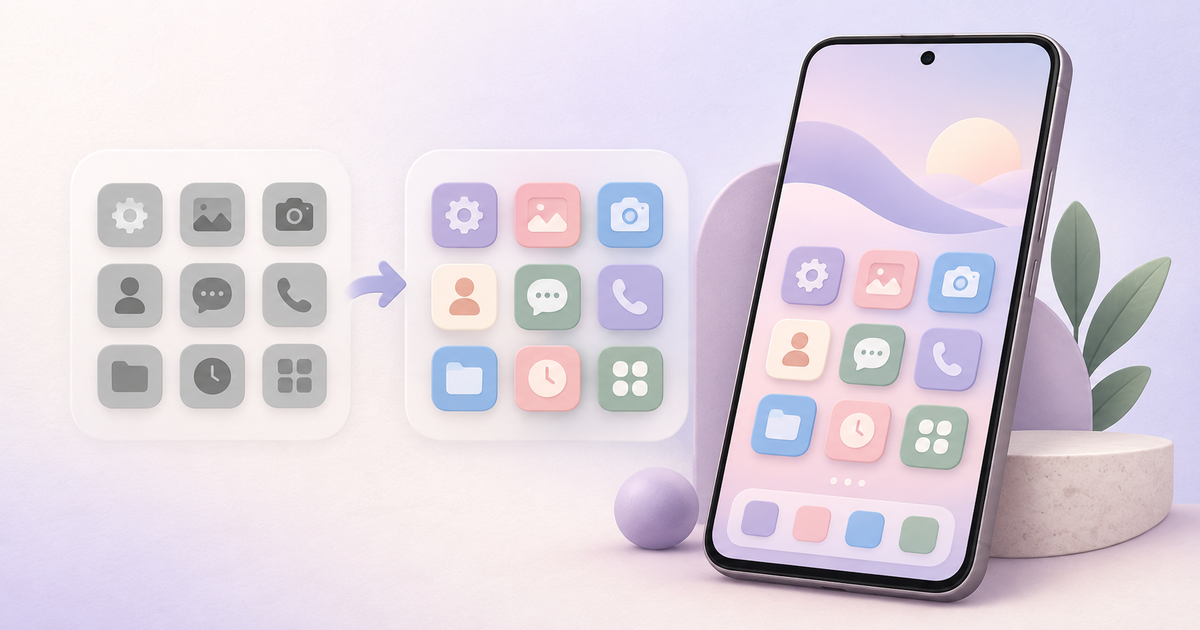
Changing app icons is an easy way to make a Home screen feel more consistent without replacing the apps you already use. Icon Changer: Custom Icons lets you choose a coordinated design, connect it to an installed app, and add the new shortcut to your Android Home screen.
Version 1.8.4 was updated on October 28, 2026. The current release adds optional Pro access through a one-time purchase, with no subscription. Pro removes ads and lets you request an icon when an app is missing from a pack.
Choose a pack that fits your wallpaper
Start with the part of your setup that will stay visible behind the icons. A quiet wallpaper usually works well with a detailed icon pack, while a patterned wallpaper can be easier to read with simpler shapes and stronger color contrast.
MunTheme has a collection of custom icon packs designed for common apps such as messaging, social, music, video, and productivity tools. You can also pair the packs with a Mun Samsung theme or use them with another wallpaper you already like.
See a public pack: Brighter Floral Days
Brighter Floral Days is a public pack with 26 custom icons. Its soft watercolor flowers and cream, blue, purple, and pink colors make it a useful example of how one visual idea can stay consistent across very different app symbols.

The first group covers everyday communication, entertainment, work, and social apps. The second group continues the same palette for Google Play, YouTube, Steam, Threads, KakaoTalk, Google Maps, PayPal, ChatGPT, and Twitch.

Use the same test with any pack you choose: compare a few icons beside your wallpaper before changing the full Home screen.
Add a custom icon to your Home screen
- Open Icon Changer: Custom Icons.
- Choose an icon pack, then tap the design you want to use.
- Select the installed app that the icon should open.
- Add the new shortcut to your Home screen.
- Open the shortcut once to confirm that it launches the intended app.
Repeat the same process for the apps you keep on your main Home screen. You do not need to replace every icon at once. Updating the dock and the first screen first makes it easier to check spacing, labels, and contrast before continuing.
What changes and what stays the same
Icon Changer uses Android shortcuts. The original app and its data are not changed. The new Home screen icon opens the app you selected, while the original app remains installed normally.
Some Android launchers may add their own small shortcut badge. The exact appearance can vary by phone, launcher, and Android version. If the result looks different from the preview, test one icon before arranging a full screen.
Keep the layout easy to use
After adding the icons, check three practical details:
- Make sure each shortcut opens the correct app.
- Keep enough contrast between the icons, wallpaper, and app labels.
- Leave the most-used apps in familiar positions so the new design does not slow you down.
If you use a downloaded Samsung theme and want to compare it with the original Galaxy layout, the guide to restoring Samsung’s Default theme explains how to switch back without deleting downloaded themes.
Download Icon Changer
Icon Changer: Custom Icons is available for Android through Google Play and the Samsung Galaxy Store.
The Google Play listing currently requires Android 8.0 or later. Availability and shortcut appearance can vary by device and launcher.