

A different notification sound for each app can tell you what needs attention before you look at your Galaxy phone. Samsung lets many apps use a separate sound for each notification category, but the category controls may be hidden until you enable them.
This guide shows the current path, explains why one app can have several categories, and covers the common reasons the Sound option does not appear. Samsung notes that names and screens can vary by device model, software version, carrier, and region.
Enable notification categories first
On recent Galaxy software, start by making the category controls visible:
- Open Settings.
- Tap Notifications.
- Tap Advanced settings.
- Turn on Manage notification categories for each app.
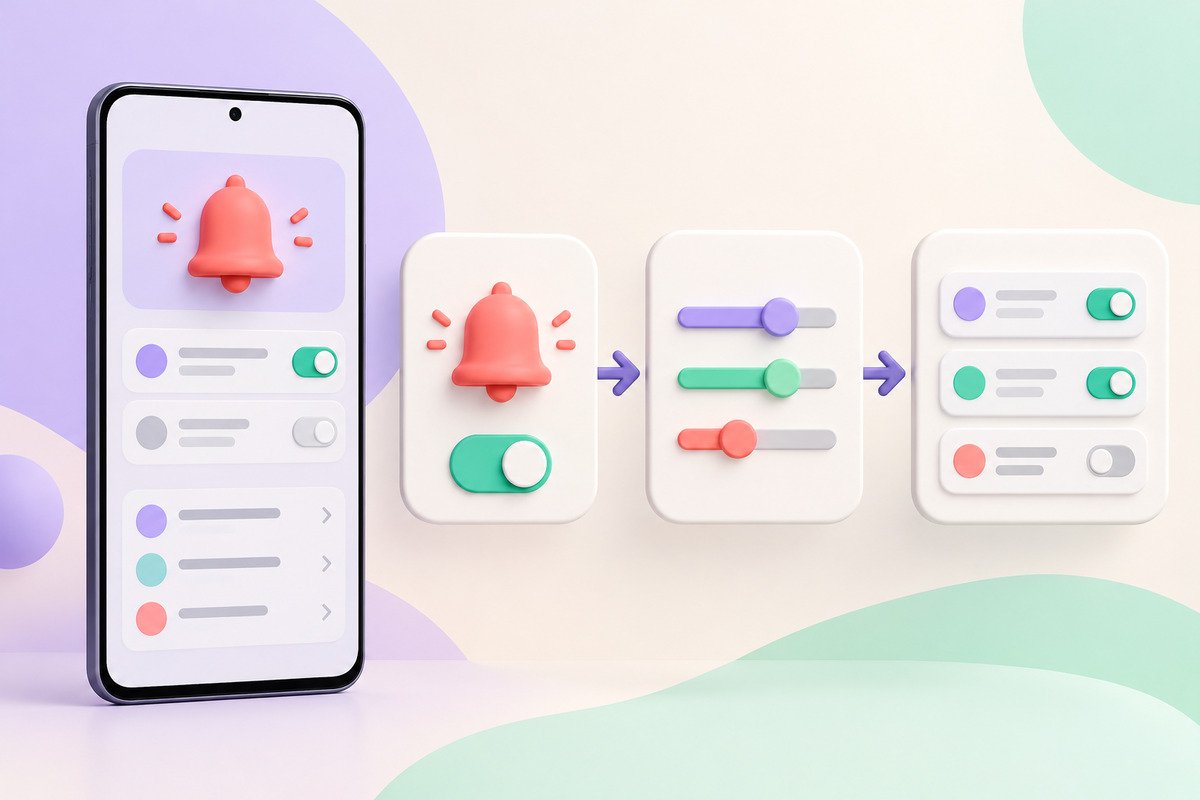
This switch does not change any sound by itself. It reveals the category controls that many apps use for messages, calls, reminders, downloads, and other alert types.
Choose a sound for one app category
- Return to Settings, then open Notifications.
- Tap App notifications.
- Select the app you want to change.
- Tap Notification categories.
- Tap the name of the category you want to change. Tap the category row, not only its on or off switch.
- Make sure notifications are allowed and the category uses Alert.
- Tap Sound, then choose a notification tone.
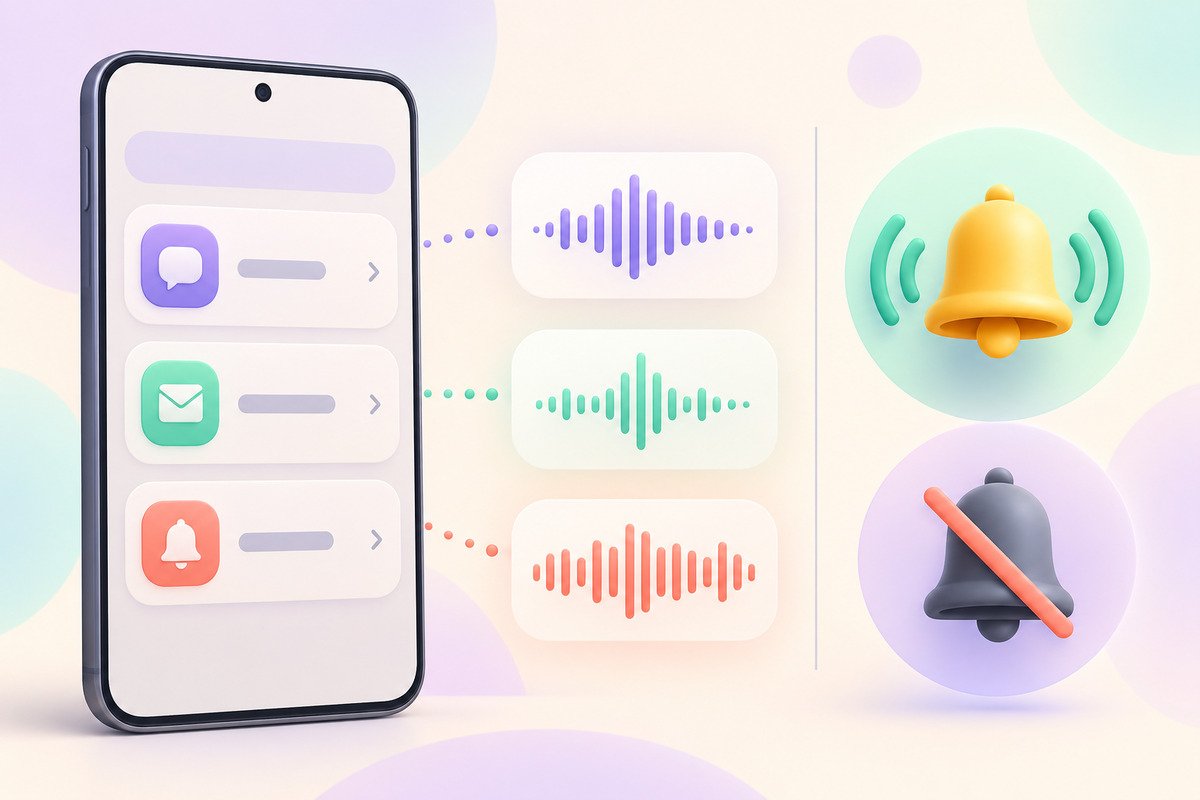
Repeat the last three steps for any other category that needs a different sound. An email app, for example, may separate new mail, account warnings, and background activity. Changing one category does not necessarily change the others.
Pick the category that actually sends the alert
The category names come from the app, so they differ from one app to another. If several choices look similar, wait for the notification you want to change, press and hold it, and open its settings. That route can take you closer to the category responsible for that alert.
Keep important alerts easy to recognize. A calm sound can work for routine messages, while a clearer tone may suit reminders that should not blend into the rest. Avoid assigning a loud sound to every category, or the distinction will disappear.
Why the Sound option may be missing
Notification categories are still hidden
Go back to Settings > Notifications > Advanced settings and confirm that Manage notification categories for each app is on.
The category is set to Silent
Open the category itself and choose Alert. A silent category will not offer the same sound behavior as an alerting category.
The app controls its own sounds
Samsung notes that not every app allows a custom sound through system settings. Some apps provide their own sound choices inside the app. Check the app’s notification settings when the Galaxy category page does not offer a Sound option.
The phone is muted or notification volume is low
A selected tone can still be hard to hear when the phone uses Vibrate or Mute, or when the notification volume is low. Check Settings > Sounds and vibration before changing the category again.
Keep the rest of the interface comfortable
Notification sounds are only one part of a calmer phone setup. You can also schedule dark mode on a Samsung Galaxy and use the Samsung theme readability checklist when choosing a visual style.
If a downloaded theme makes settings hard to check, the guide to restoring Samsung’s Default theme explains how to test the original appearance without deleting your downloaded themes.
Source
Samsung’s current support guide explains notification categories, custom category sounds, and the limits that vary by app: Control app notifications on your Galaxy phone or tablet.