
A face blur is only useful if it stays in the right place throughout the clip. Before sharing event footage, a group photo, or a short street video, give the exported result its own review. The preview in an editor is a useful starting point, but the saved file is what other people will see.
Start with what you need to hide
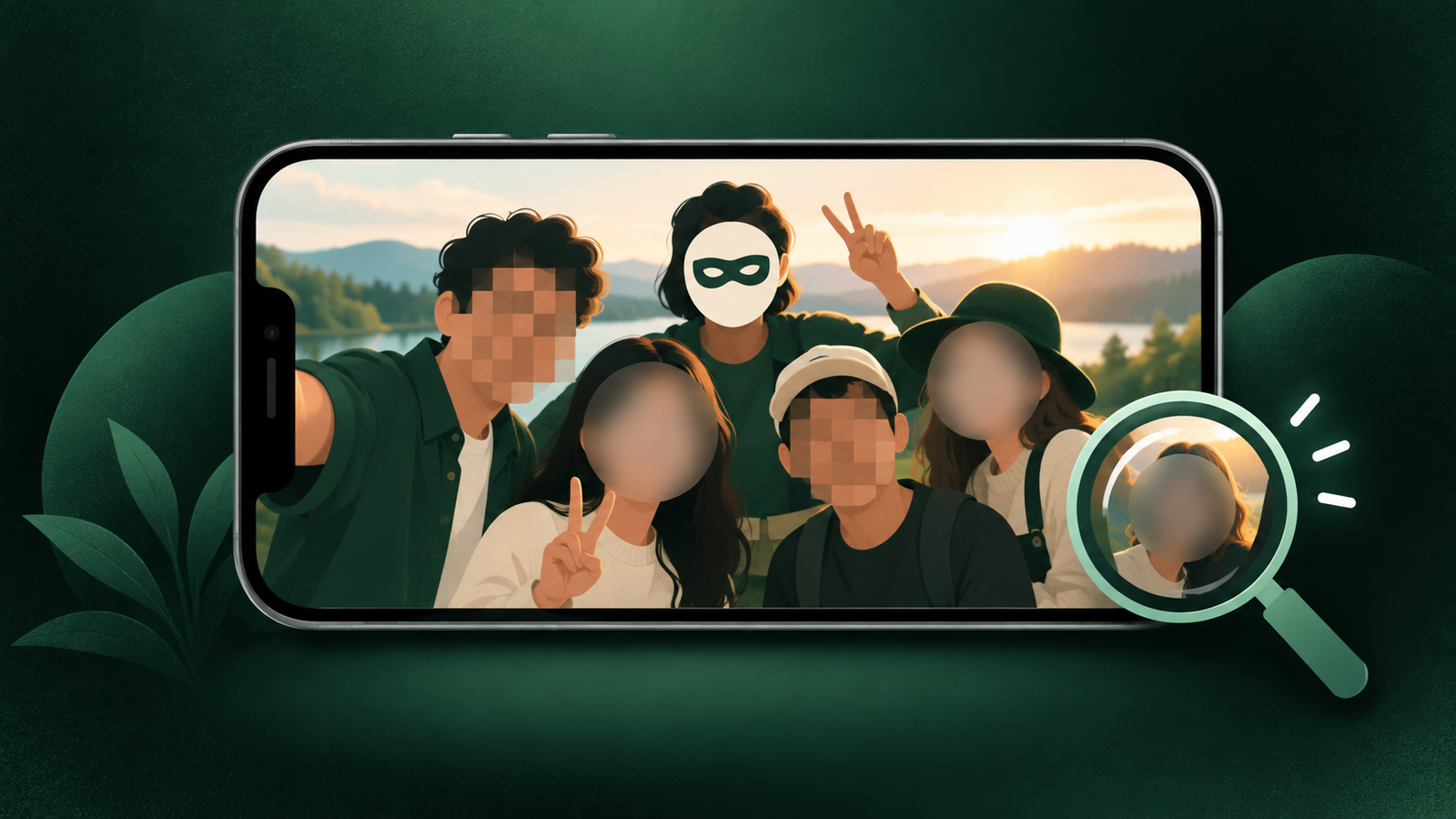
Decide which people should remain visible before applying a cover style. If the clip does not need a face at all, cropping may be simpler. For faces that stay in the frame, choose a covering style that remains clear against the background.
When several people are close together, check each face separately. One person may turn away while another moves into the frame, and a single setting may not handle both moments equally well.
Inspect the moments when tracking is hardest
Review the beginning and end, then check turns, quick movement, overlapping people, and faces entering at the edge. Pause on those moments instead of judging the result from one still frame. A face that is covered in the middle of a clip can still appear briefly elsewhere.
- Check the first and last second of the clip.
- Pause when someone turns sideways or looks down.
- Watch for people crossing in front of each other.
- Check faces that enter from the edge of the frame.
- Review fast camera movement and sudden cuts.
Check more than faces
Names on badges, addresses, reflections, captions, screens, and voices can still identify someone. Face covering is one editing step. It does not make the entire video anonymous or replace permission to share it.
Look at mirrors, windows, and shiny surfaces. A face may be covered in the main frame while its reflection stays visible. For school, workplace, or event footage, also check signs and name tags before sharing.
Use a cover style that stays easy to verify
Blur can look natural, while pixelation, mosaic, solid blocks, and emoji make the covered area easier to notice. Choose the style that fits the clip and makes your review simple. If the background is already soft or busy, a stronger block may be easier to verify than a light blur.
Review the saved export
Play the exported file from your gallery, not only inside the editor. Confirm that the cover is still present, the crop makes sense, and no unedited segment was included. If you share several files together, inspect each one instead of assuming the first result represents the whole batch.
For a photo set, swipe through every image at full size. For video, use the playback scrubber to revisit the difficult moments you identified earlier.
Where Blur Face fits
Blur Face detects faces in photos and videos, tracks them frame by frame, and offers cover styles including blur, pixelation, mosaic, censor blocks, and emoji. Its Review and Fix step lets you check missed moments before export, and batch processing can handle several photos or videos in one pass.
Media processing happens on the device, so photos and videos are not uploaded for editing. Store data-safety disclosures cover app and advertising identifiers separately, so review those details when deciding whether the app suits your needs.
Availability
Blur Face is available on Google Play and the Samsung Galaxy Store. The iPhone version is not live yet.
If you also add an ownership mark before publishing, see how to watermark multiple photos and videos on your phone.