How to Turn a Screen Recording Into One Long Screenshot with Stitchy
 SophieSeptember 26, 2026
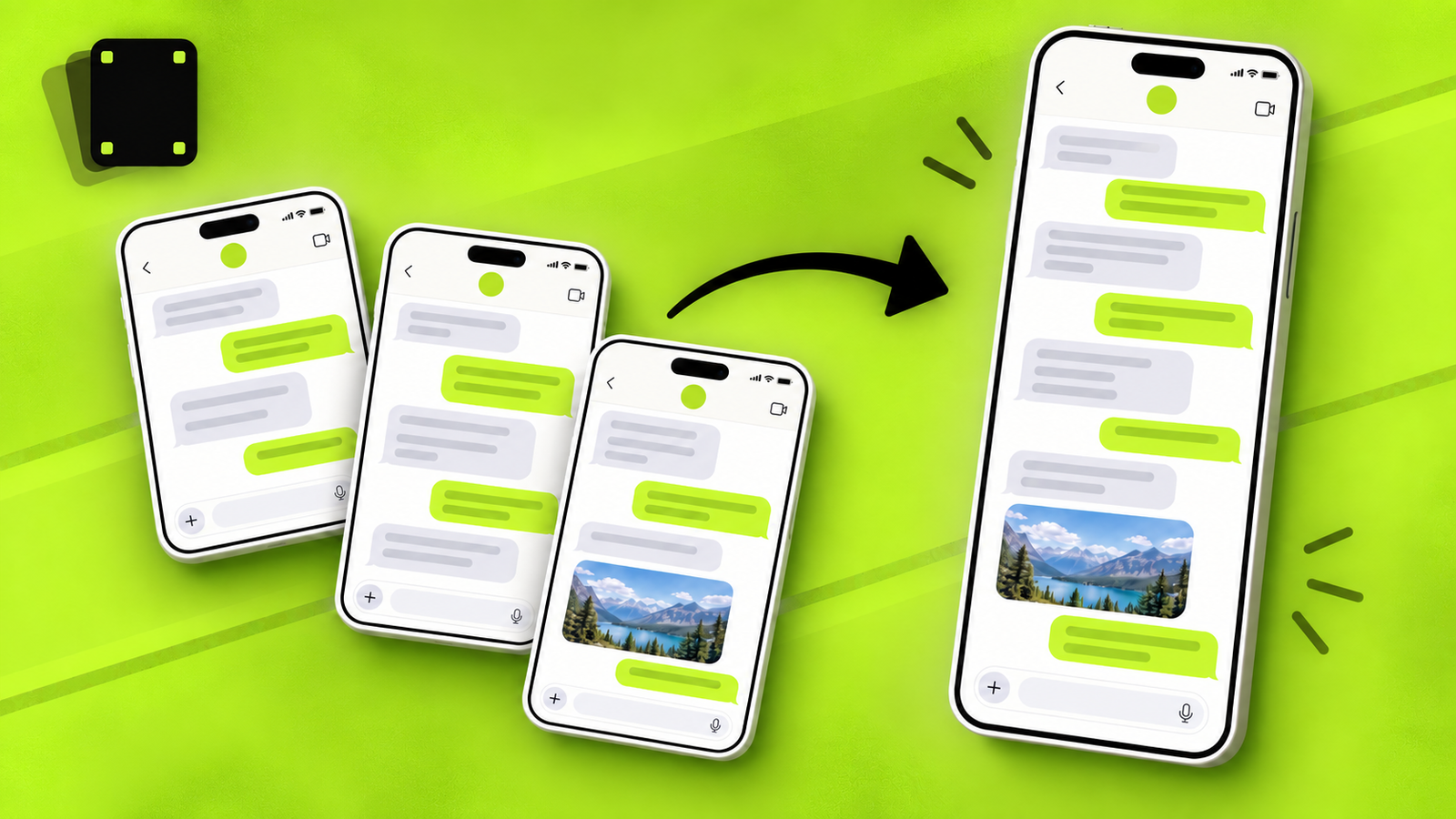
Sometimes a conversation, receipt, article, or settings page is longer than one screen. Taking a stack of screenshots works, but the person receiving them has to work out the order and mentally join the gaps.
Stitchy takes a simpler route: record one steady scroll, import the recording, and turn it into one tall image on your phone.
When a long screenshot is useful
A single tall image is easier to search, archive, and share than a folder full of numbered screenshots. It is especially useful for:
- long conversations you need to keep in order;
- receipts, booking details, or instructions that span several screens;
- web pages and feeds that do not support a built-in scrolling screenshot;
- an existing screen recording that you would rather turn into still images.
If your Samsung phone shows Scroll capture after you take a screenshot, that built-in tool may be the quickest option. Stitchy is useful when Scroll capture is unavailable, when the content is inside another app, or when you already have a recording.
Before you record
Take a moment to make the recording clean:
- Open the content at the point where you want the final image to begin.
- Hide notifications if the recording could reveal private information.
- Keep the phone in one orientation.
- Scroll at a steady pace and avoid dragging sideways.
Some apps block screen recording for protected or sensitive content. If the recording is blank, respect the app’s restriction and use its own export tools instead.
Step 1: Record one steady scroll
Start your phone’s screen recorder, then move down the page or conversation at a calm, consistent speed. A short overlap between each screenful helps Stitchy match one frame to the next.
On a Samsung Galaxy phone, Screen recorder is usually available from the Quick panel. On iPhone, add Screen Recording to Control Center if it is not already there.
Stop the recording once you reach the end of the section you want to keep.
Step 2: Import the video into Stitchy
Open Stitchy and choose the recording. The app finds where consecutive frames overlap, joins them, and trims the fixed header that would otherwise repeat down the image.
The processing happens on your device. Your recording does not need to be uploaded to a server to create the screenshot.
Step 3: Check the result
Preview the stitched image before saving it. Look for two common issues:
- a sudden jump caused by scrolling too quickly;
- a moving element, such as a video or animation, appearing more than once.
If the result is not clean, record the section again with a slower, steadier scroll. A simple second take is often faster than trying to repair several screenshots by hand.
Step 4: Save one image or split it into slices
Save the result as one tall image when you want a complete archive. If a messaging app or social network has an image-height limit, choose Split and set a maximum height for each slice. Stitchy keeps the slices in order so they are ready to share.
Where to get Stitchy
Stitchy is available now for iPhone and through the Galaxy Store. The Google Play version is still coming soon.
You can also see the current feature overview on the Stitchy app page or browse more Mun Studio apps.
The main idea is simple: record the scroll once, then keep the result in the format that is easiest to save or share.