
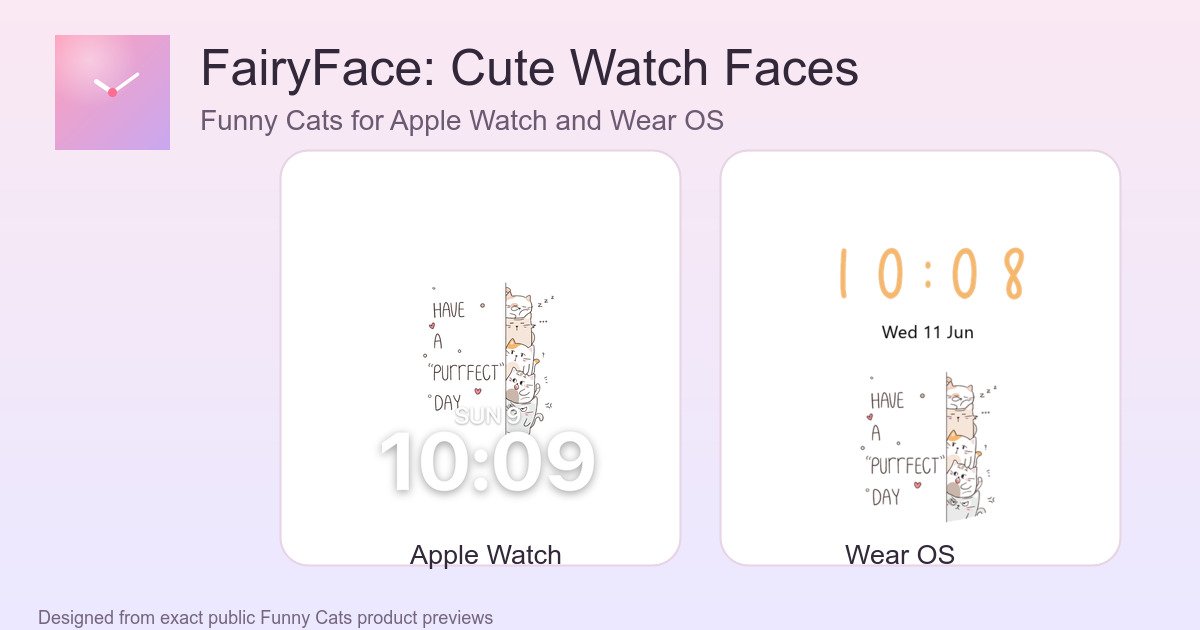
A watch face can be decorative without making the time hard to read. FairyFace collects illustrated watch faces for Apple Watch and Wear OS, then sends a compatible design from your phone to your paired watch.
This guide uses the public Funny Cats face as an example. The same basic flow works for other FairyFace designs, but the final install step depends on whether you use Apple Watch or Wear OS.
What you need before you start
- An Apple Watch already paired with an iPhone, or a Wear OS watch already paired with an Android phone.
- FairyFace installed on the phone that manages your watch.
- Both devices nearby and connected while the face is being sent.
The current iPhone version requires iOS 17 or later. On Android, FairyFace requires Android 8.0 or later and a paired watch running Wear OS 4 or later. Google Play notes that one-tap sending requires Wear OS 6. Wear OS 4 and 5 users can still browse, save, and favorite designs.
1. Choose a face that stays easy to read
Start with the information you check most often. A design may look lovely in a large preview but feel busy when reduced to a watch screen. Check the time, date, and any decorative elements before installing it.
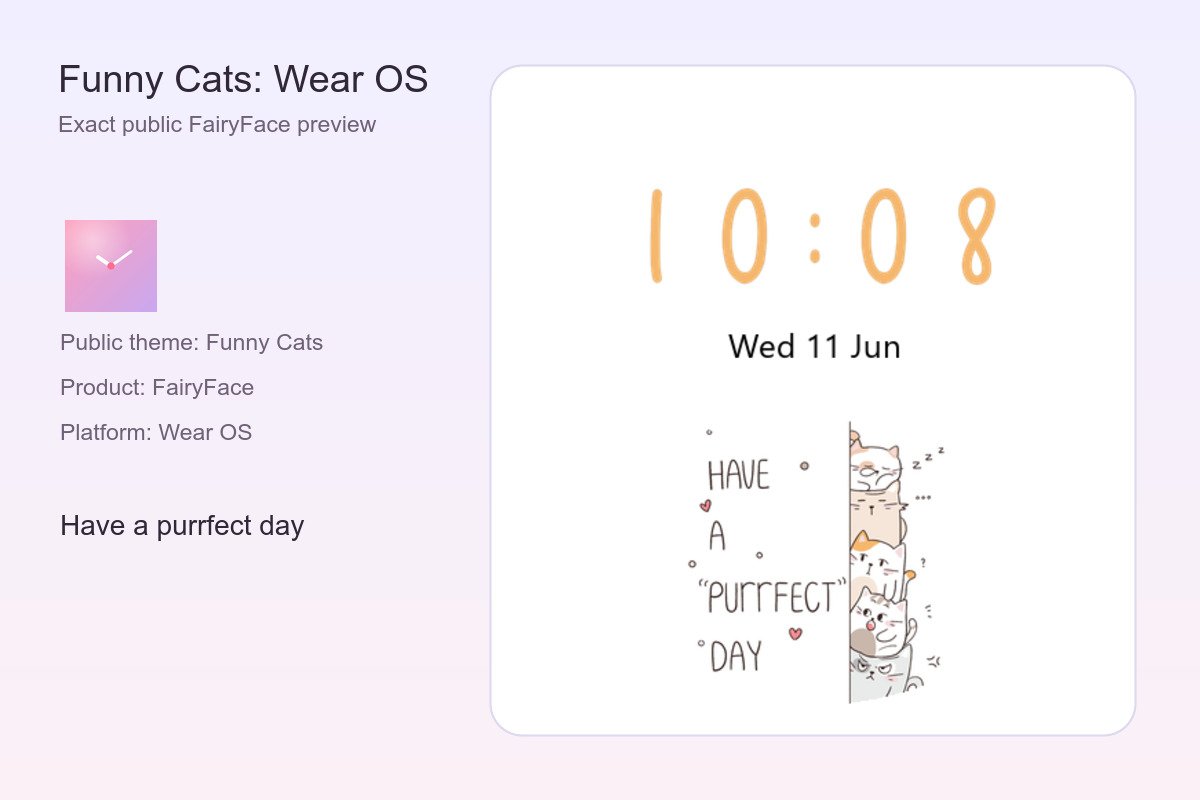
Funny Cats keeps most of its illustration on one side of the display, leaving a clear area for the clock. That balance is useful when you want a playful face without covering the time.
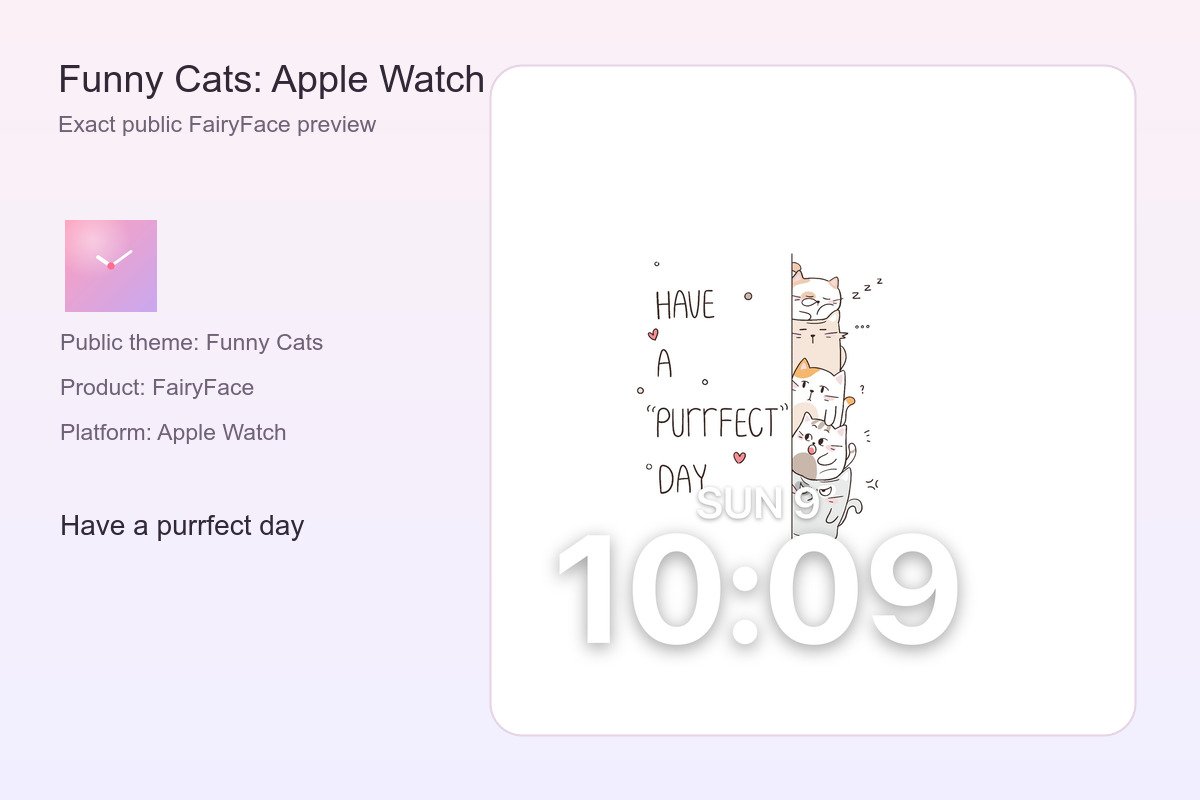
If you often glance at your watch outdoors, also consider contrast. Pale art looks soft, but the time still needs enough separation from the background. A quick preview at normal screen brightness is more useful than judging only from a zoomed image.
2. Add a FairyFace design to Apple Watch
- Open FairyFace on the iPhone paired with your Apple Watch.
- Browse the collection and open the face you want.
- Check the full preview, then tap Install.
- Keep the Apple Watch near the iPhone while FairyFace sends the compatible face file.
- When the install finishes, check the watch and make sure the time remains clear at a normal viewing distance.
FairyFace uses Apple's watch face installation API and automatically selects the best-matching file for the watchOS version it detects. You do not need a computer or cable.
3. Add a FairyFace design to Wear OS
- Open FairyFace on the Android phone paired with your Wear OS watch.
- Choose a face and open its detail view.
- Tap Add to watch.
- Keep the watch close and connected while the design is sent.
- On Wear OS 6, complete the one-tap send and then check the face on the watch.
Wear OS 4 and 5 users can browse, save, and favorite faces, but Google Play currently lists Wear OS 6 as the requirement for one-tap installation.
What to check if the face does not appear
- Confirm that the watch is paired with the same phone running FairyFace.
- Keep Bluetooth and the normal watch connection active during the transfer.
- Move the watch closer to the phone and try the install again once.
- On Android, check the Wear OS version. One-tap sending currently requires Wear OS 6.
- On iPhone, confirm that iOS 17 or later is installed.
- Open the face preview again and make sure you selected the version intended for your watch platform.
If the face installs but feels too busy, choose a design with more empty space around the clock. The goal is a face you enjoy and can still read in one quick glance.
Get FairyFace
FairyFace is available for iPhone and Android. Use the store that matches the phone paired with your watch.
Keep the rest of your screen coordinated
A watch face works best as one small part of the overall look. If you also want a coordinated Android Home screen, see our guide to changing app icons with Icon Changer. For Samsung phones, the Samsung theme readability checklist helps balance wallpaper, icons, and text contrast. You can also learn how to arrange useful lock screen shortcuts and widgets.