
Dark mode can make a Galaxy phone more comfortable to use in a dim room, but switching it by hand every evening is easy to forget. Samsung includes two automatic options: a sunset to sunrise schedule and a custom time window.
Turn on dark mode
- Open Settings.
- Tap Display.
- Choose Dark to apply it immediately.
You can also open the Quick settings panel and tap the Dark mode control when you want to switch manually.
Set an automatic schedule
- Go to Settings, then Display.
- Open Dark mode settings.
- Turn on Turn on as scheduled.
- Choose Sunset to sunrise or set a custom start and end time.
Samsung notes that the exact names and screens can vary by Galaxy model, software version, country, or carrier. The current steps are also described in Samsung’s official dark mode guide.
Choose sunset to sunrise or a custom time
Sunset to sunrise is useful when you want the schedule to follow seasonal daylight. It may need Location to be enabled so the phone can calculate local sunset and sunrise times.
A custom schedule is more predictable. It works well if you want dark mode to begin before bedtime and return to light mode at the same time every morning.
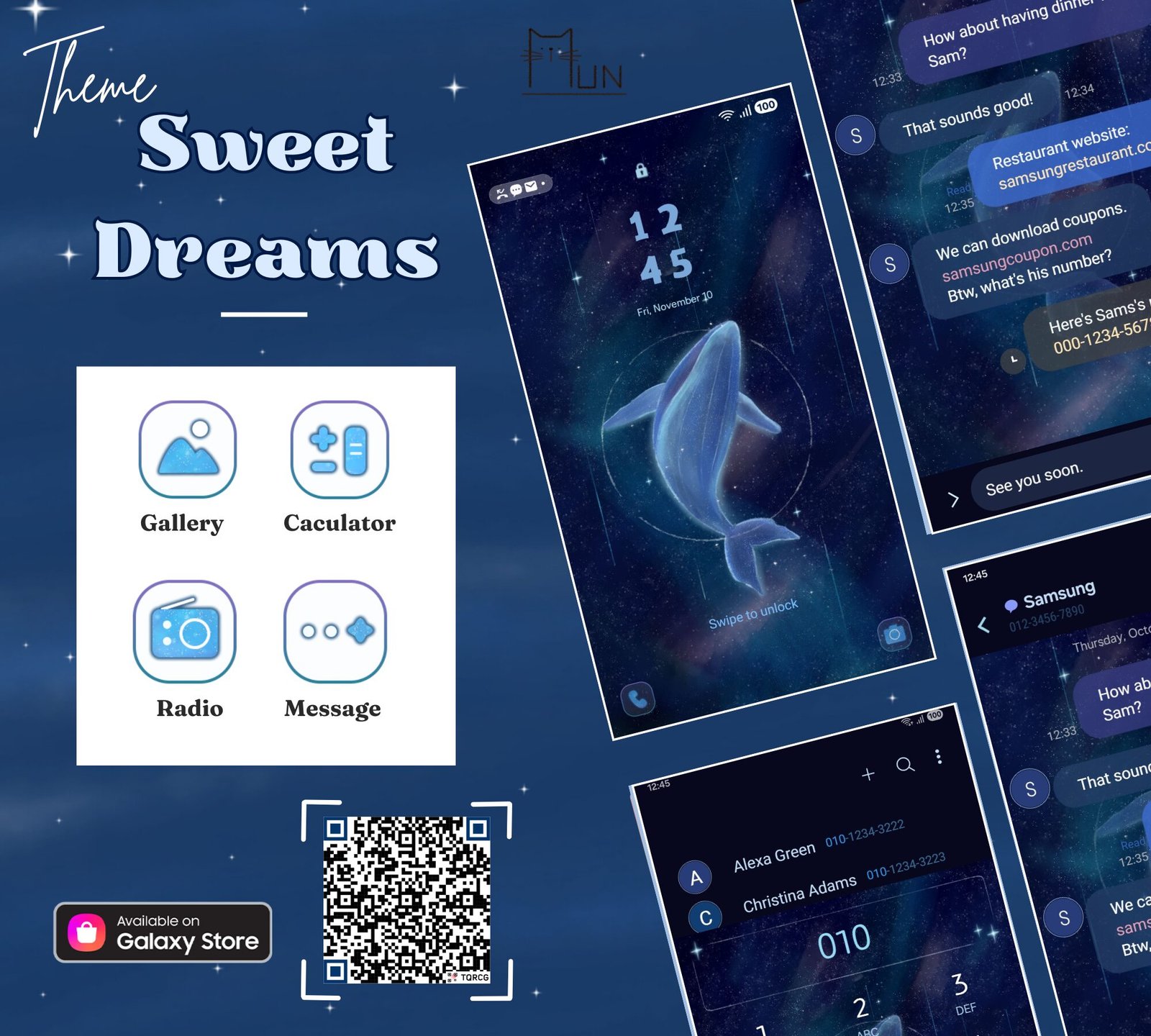
Check a downloaded theme when dark mode looks wrong
Samsung warns that dark mode may not work as intended with some downloaded themes, high contrast fonts, or third party apps. If colors do not switch as expected, apply Samsung’s Default theme as a temporary test. The guide to restoring the Default theme on a Samsung Galaxy shows the short path without deleting downloaded themes.
After the test, you can return to your preferred theme. Before applying another design, use the Samsung theme readability checklist to compare icon labels, notification text, and contrast.
Why some apps stay light
Dark mode changes Samsung menus, settings, and supported apps. A third party app can keep its own light appearance when it does not follow the system setting or has a separate theme control. Check that app’s display settings before assuming the Galaxy schedule failed.
Quick checks when the schedule does not run
- Confirm that Turn on as scheduled is still enabled.
- Check the custom start and end times.
- If you use sunset to sunrise, confirm that Location is available.
- Temporarily test Samsung’s Default theme.
- Check whether the affected app has its own light or dark setting.
Once the schedule matches your routine, the phone can move between light and dark mode without another daily step.